QLC+ 2 — Initial Setup on Your PC
Updated: 2026-06*

QLC+ は、学生それぞれが自分のPCにインストールして使用します。このセットアップは 各PCで一度だけ 行えば、あとは毎回開いて操作するだけです。
Each student installs and uses QLC+ on their own PC. This setup is done once per PC; after that you just open it and operate.
このセットアップで使うもの(配布パッケージ) — 管理者から次の3点を受け取っておいてください。
- カスタムFixture定義(
.qxf)… ライブラリに無い照明の定義- プロジェクト(
.qxw)… 卓・シーンなどの一式- 設定資料… Wi‑Fi の SSID、ODE の IP、Art‑Net ユニバース、DMX アドレスなど
What you need (the distributed package) — get these three from the administrator: 1. custom fixture definition (.qxf); 2. project (.qxw); 3. configuration materials (Wi-Fi SSID, ODE IP, Art-Net universe, DMX addresses). QLC+ itself you download from the official site.
2.1 全体の流れ|Overview
- QLC+ をダウンロードしてインストール / Download & install QLC+
- カスタムFixture定義(
.qxf)を所定フォルダに置く / Place the .qxf in the user fixtures folder - プロジェクト(
.qxw)を開く / Open the project (.qxw) - このPCの Art‑Net 出力先を確認・設定 / Set this PC’s Art-Net output
- 動作確認 / Test
ここまで終われば、次回からは「Wi‑Fi 確認 → プロジェクトを開く → 操作 → 終了」だけになります。
Once done, future use is just: check Wi-Fi → open the project → operate → quit.
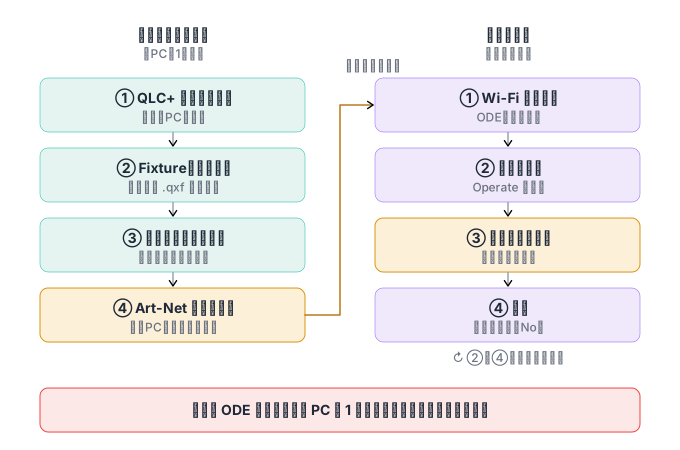
学生が自分のPCで使う場合のフロー。初回セットアップは各PCで1回、以降は毎回の運用だけ。ODE への同時操作は1台のみ。 / Flow for a student’s own PC: one-time setup per PC, then daily operation only. Only one PC may drive the ODE at a time.
2.2 ダウンロードとインストール|Download & install
公式サイトから入手します(転載サイトは使いません)。ページには V5(5.2.1)と V4(4.14.4)が並ぶので、本シリーズは V5 | QLC+ 5.2.1 を使います。管理者と同じバージョンに必ず合わせてください(違うとプロジェクトが正しく開けないことがあります)。
Get it from the official site (qlcplus.org/download), not mirrors. The page lists V5 (5.2.1) and V4 (4.14.4); this series uses V5 | QLC+ 5.2.1. Always match the administrator's version (a mismatch can stop the project opening correctly).
Windows(10 以降)
- V5 の
QLC+_5.2.1.exeを保存して実行 / Save and run QLC+_5.2.1.exe - 「WindowsによってPCが保護されました」が出たら [詳細情報]→[実行]/ If SmartScreen warns, choose More info → Run
- ドライバ関連のコンポーネントはチェックを入れたまま 完了 / Keep the driver components checked
- スタートメニューに QLC+ と QLC+ Fixture Editor が追加されます / QLC+ and QLC+ Fixture Editor are added
macOS(12 以降)
- Apple シリコンは
arm64.dmg、Intel はx86_64.dmg/ arm64.dmg for Apple silicon, x86_64.dmg for Intel .dmgを開き、QLC+ を Applications へドラッグ / Open the .dmg and drag QLC+ to Applications- 初回は 右クリック →[開く]→[開く] で許可 / First launch: right-click → Open → Open
- ローカルネットワークの許可を求められたら 許可 / Allow local network access when prompted
Linux
QLC+_5.2.1_x86_64.AppImageをダウンロードし、実行権限を付けて起動(chmod +x後にダブルクリック/./...AppImage)。Download the AppImage, make it executable (chmod +x), then run it.
2.3 カスタムFixture定義(.qxf)を配置|Place the .qxf
ライブラリに無い/モードが合わない機種の定義を .qxf として配布しています。これを ユーザーフィクスチャフォルダ に置きます。
Definitions for models not in the library (or whose mode differs) are distributed as .qxf files. Put them in the user fixtures folder.
| OS | フォルダ / Folder |
|---|---|
| Windows | ドキュメント\QLC+\Fixtures |
| macOS | ~/Library/Application Support/QLC+/Fixtures |
| Linux | ~/.qlcplus/fixtures |
配置したら QLC+ を再起動 すると読み込まれます。
After placing them, restart QLC+ to load them.
この手順を飛ばすと、プロジェクトを開いたとき「フィクスチャーが見つからない」状態になり、その照明が動きません。
Skip this and the project will report “fixture not found,” and that light won’t move.
2.4 プロジェクト(.qxw)を開く|Open the project
QLC+ を起動し、File → Open で配布された .qxw を開きます。卓(Virtual Console)、シーン、フィクスチャー一覧が読み込まれれば成功です。
Launch QLC+ and File → Open the distributed .qxw. Success = the Virtual Console, scenes, and fixture list all load.
2.5 このPCの Art‑Net 出力先を設定|Set Art-Net output
プロジェクトに出力設定は保存されていますが、「どのネットワークから送るか」はPCごとに異なるため、初回はこのPCに合わせて選び直します。
The project stores output settings, but which network interface sends the data differs per PC, so set it for this PC the first time.
- PCを スタジオの Wi‑Fi(ODE と同じ回線) に接続 / Join the studio Wi-Fi (same network as the ODE)
- 入出力(Inputs/Outputs) で Universe 1 を選ぶ / In Inputs/Outputs, select Universe 1
- Outputs の ArtNet のうち、この Wi‑Fi アダプタの IP の行をオン / Turn on the ArtNet row for this Wi-Fi adapter’s IP
- 行の設定(歯車)で ユニバース番号 と 送信先 IP(ODE の IP、ユニキャスト推奨) を設定資料に合わせる / In the row’s settings, set the universe number and target IP (the ODE’s IP, unicast) per the materials
ここがPCごとの一番のつまずきポイントです。「卓は出るのに照明が動かない」ときは、ほぼこの Art‑Net インターフェースの選択ミスか、ユニバース/IP の不一致です。
This is the biggest per-PC pitfall. “The console shows but lights don’t move” is almost always the wrong Art-Net interface, or a universe/IP mismatch.
2.6 動作確認|Test
Operate モード に切り替え、スライダーやボタンを操作して照明が反応すれば初回セットアップ完了です。
Switch to Operate mode and move a slider or button; if the lights respond, initial setup is complete.
重要:操作は同時に1台のPCだけ。 複数PCが同じ ODE へ同時に Art‑Net を送ると信号が競合し、ちらつきや誤動作になります。
Important: only one PC operates at a time. Two PCs sending Art-Net to the same ODE conflict, causing flicker or glitches.
2.7 補足:Fixture Editor とアップデート|Notes
- 一緒に入る QLC+ Fixture Editor は定義の自作・編集用で、学生は通常使いません。
The bundled QLC+ Fixture Editor is for authoring definitions; students normally don't use it.
- QLC+ は自動更新されません。管理者の指定バージョンを維持 し、勝手に上げないでください。
QLC+ doesn't auto-update — keep the administrator's specified version and don't upgrade on your own.