Cascadeur Retargeting to Blender via mixamo
Updated: 2026-06*
1. Introduction
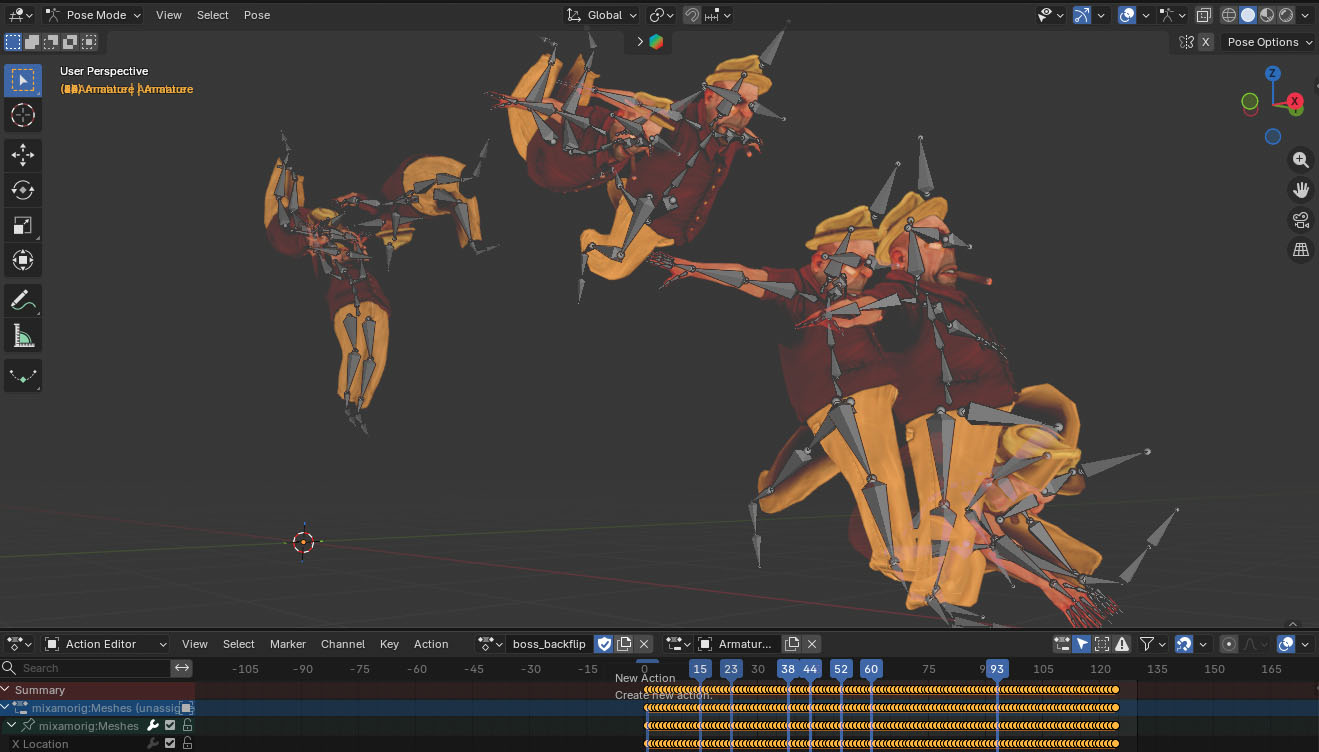
This page covers retargeting a Cascadeur animation onto a mixamo character and importing the result into Blender.
Cascadeur 2025.3 on macOS does not support materials, so we export from Cascadeur as a solid (untextured) FBX, then in Blender we separately load the textured T-pose model and swap the Action to apply the animation.
Blender’s Rigify or Auto-Rig Pro can do something equivalent, but in many cases preprocessing in Cascadeur is simpler. If Cascadeur gains material support in the future, this workflow may become unnecessary.
Prerequisite: The Retargeting feature is only available in the Cascadeur Pro or EDU edition — it does not exist in Free.
Retargeting between different characters
You cannot simply copy an animation between models whose armature (skeleton) structures differ. The structural mismatch has to be resolved first. Cascadeur handles this by aligning structures in Rig Mode, then retargeting.
Other references
2. Overall Flow
- mixamo: Prepare the character (download a T-pose FBX)
- Cascadeur:
- Import the mixamo FBX
- Set up the rig (Quick Rigging Tool)
- Copy motion from the Backflip sample via Retargeting
- Export FBX
- Blender:
- Import the mixamo FBX (T-pose, with textures)
- Import the Cascadeur-exported FBX (delete its Mesh and Armature immediately — keep only the Action)
- Assign the Action to the T-pose Armature
3. Prepare the mixamo Character
At https://www.mixamo.com/, pick a character.
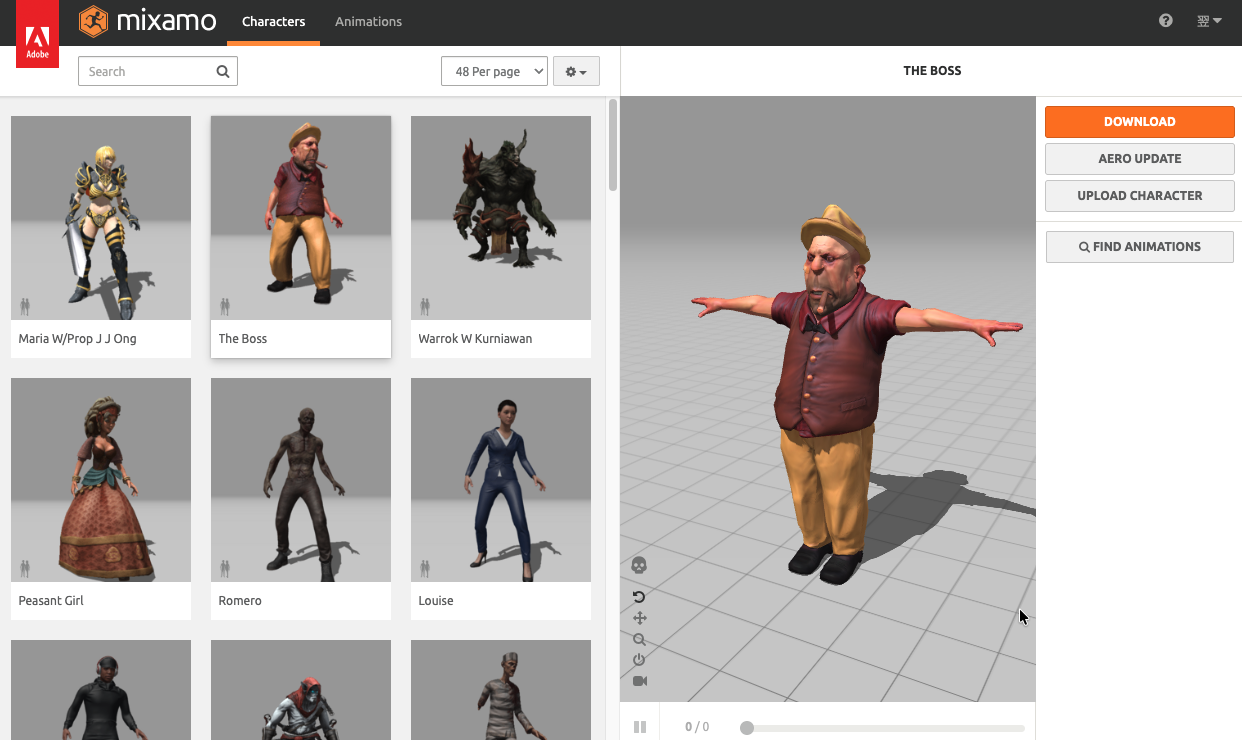
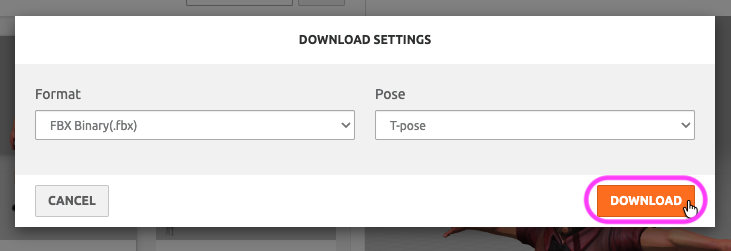
Without changing any settings, download the T-pose FBX.
4. Cascadeur Steps
4.1 Open the sample project
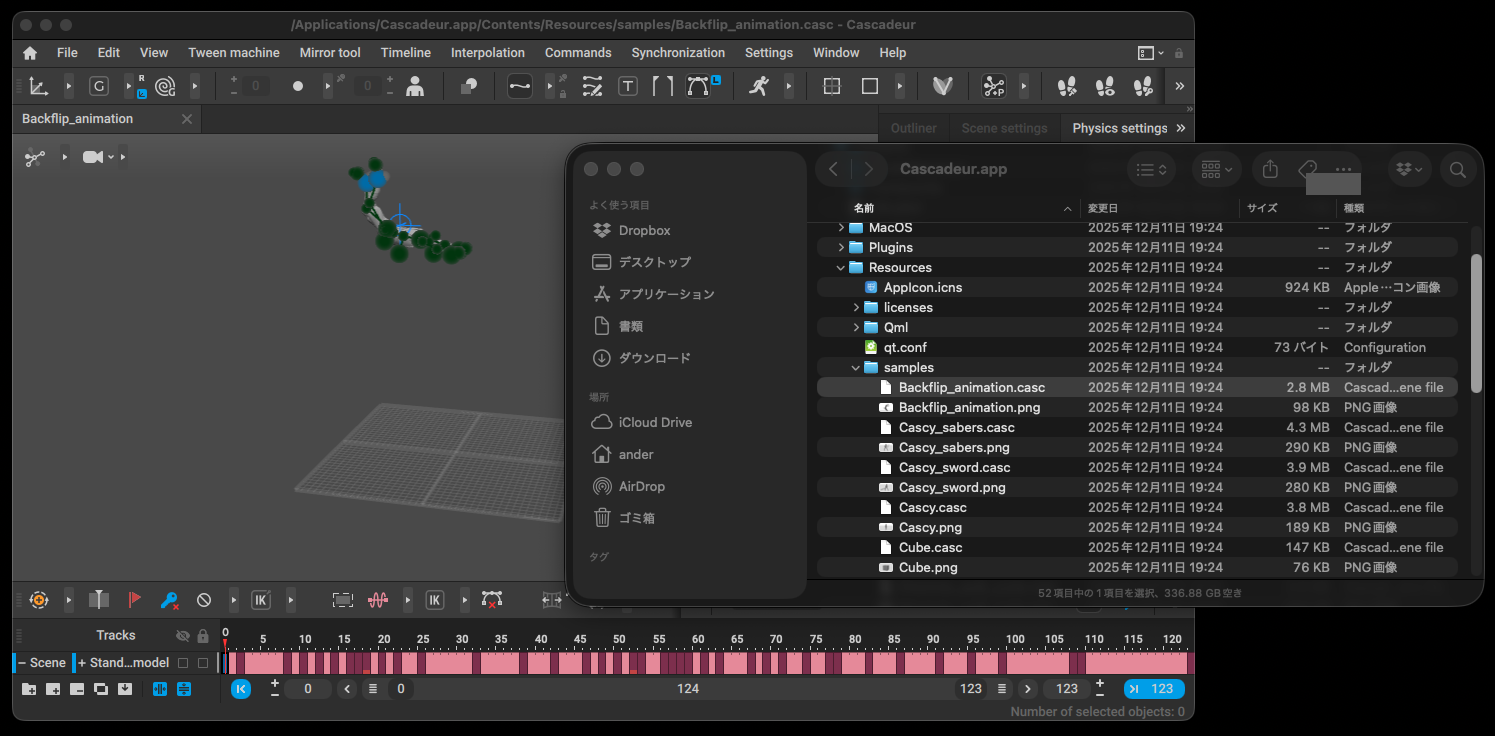
From Home, open the sample Backflip_animation.casc.
4.2 Create a new scene
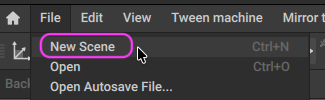
File > New Scene adds a new scene.
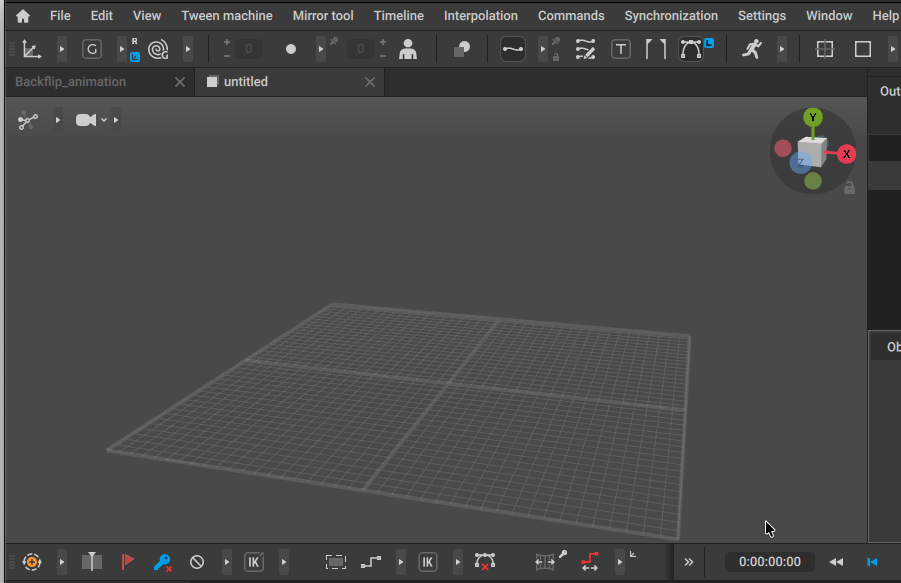
You now have two scene tabs.
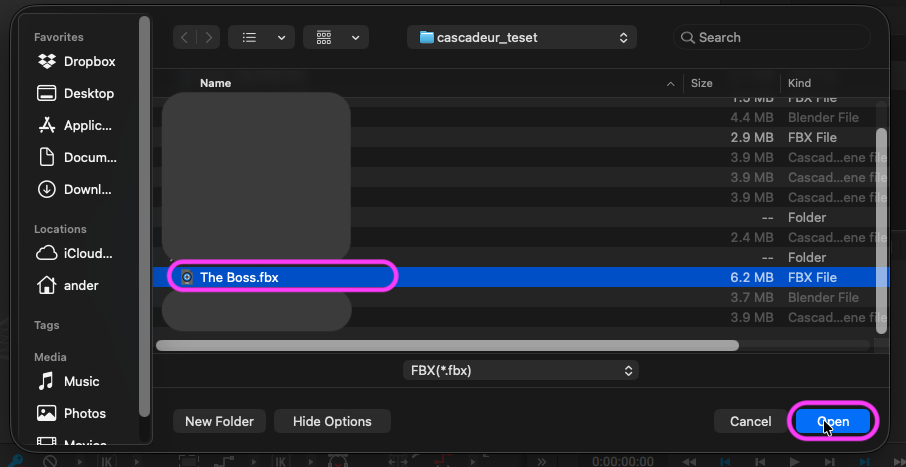
4.3 Import the mixamo FBX
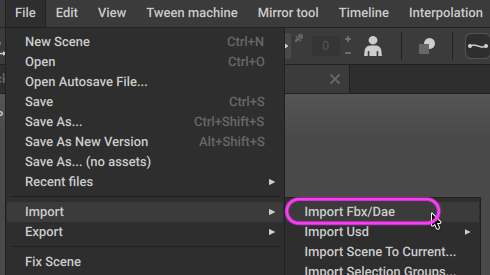
File > Import Fbx/Dae.
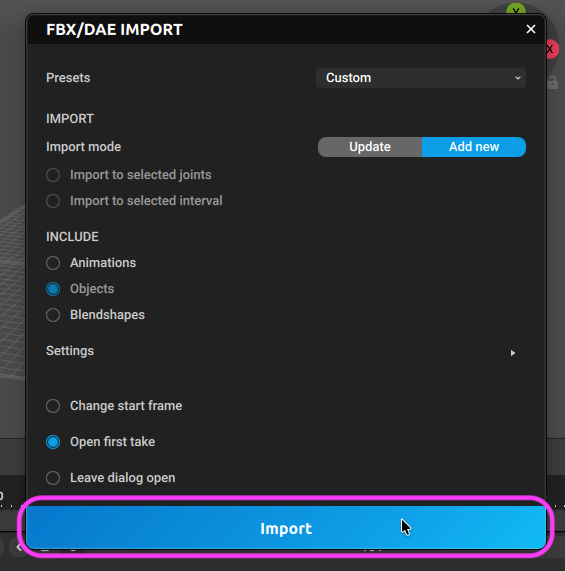
In the FBX/DAE IMPORT dialog, leave defaults and press Import.
The mixamo T-pose appears.
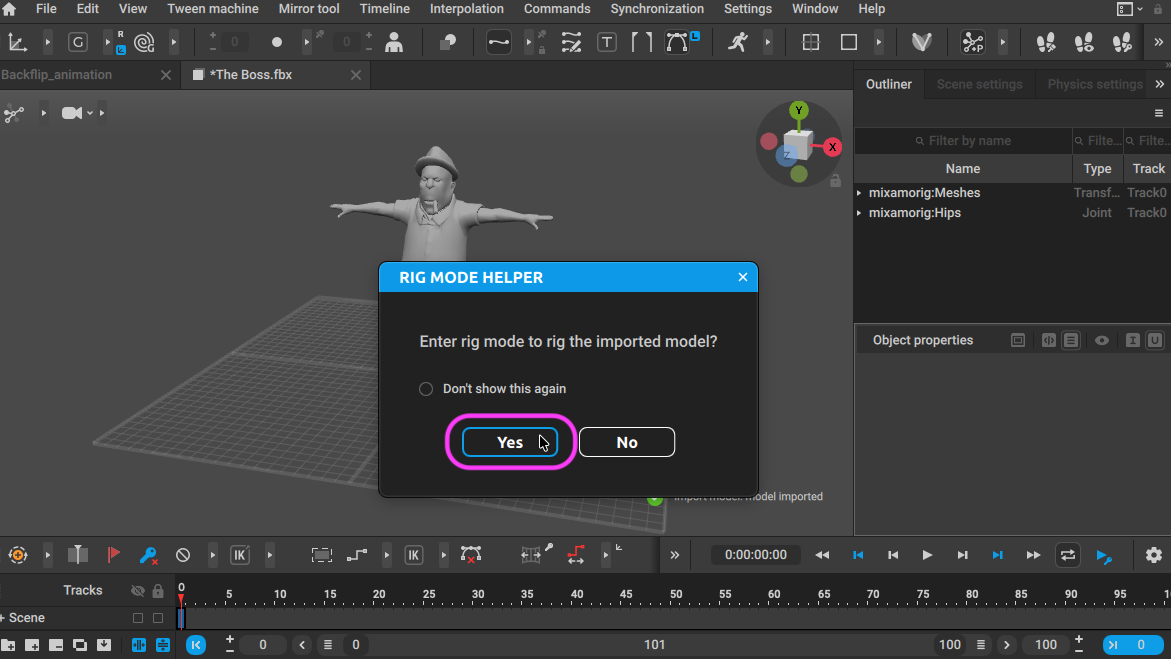
On RIG MODE HELPER, answer “Enter rig mode to rig the imported model?” with
Yes.
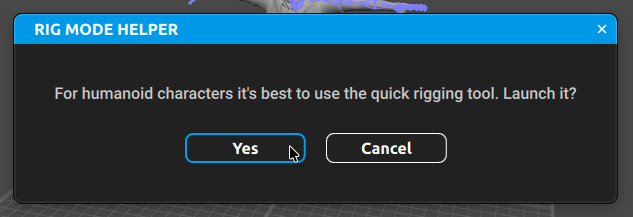
Answer “For humanoid characters it’s best to use the quick rigging tool. Launch it?” with Yes as well.
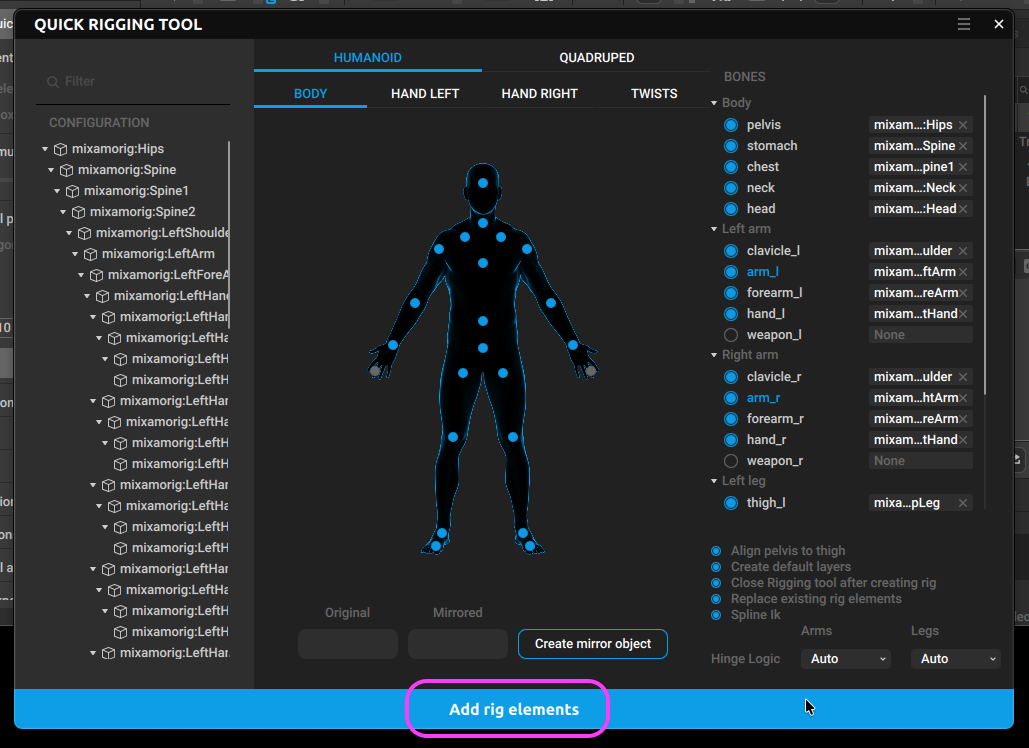
Confirm the QUICK RIGGING TOOL dialog with Ok.
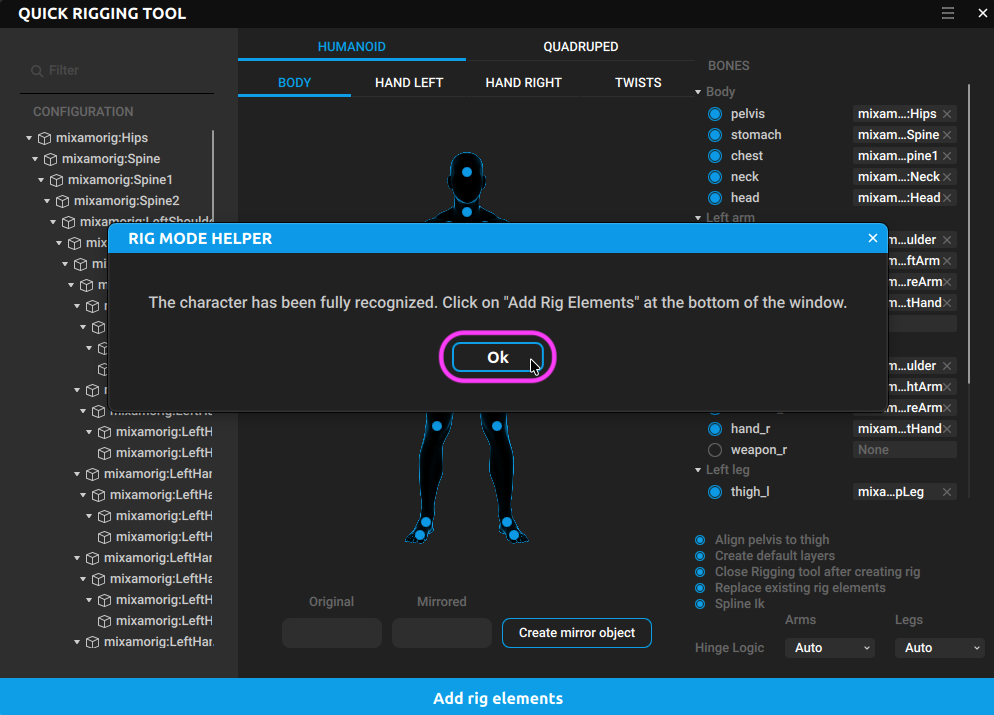
Click Add rig elements.
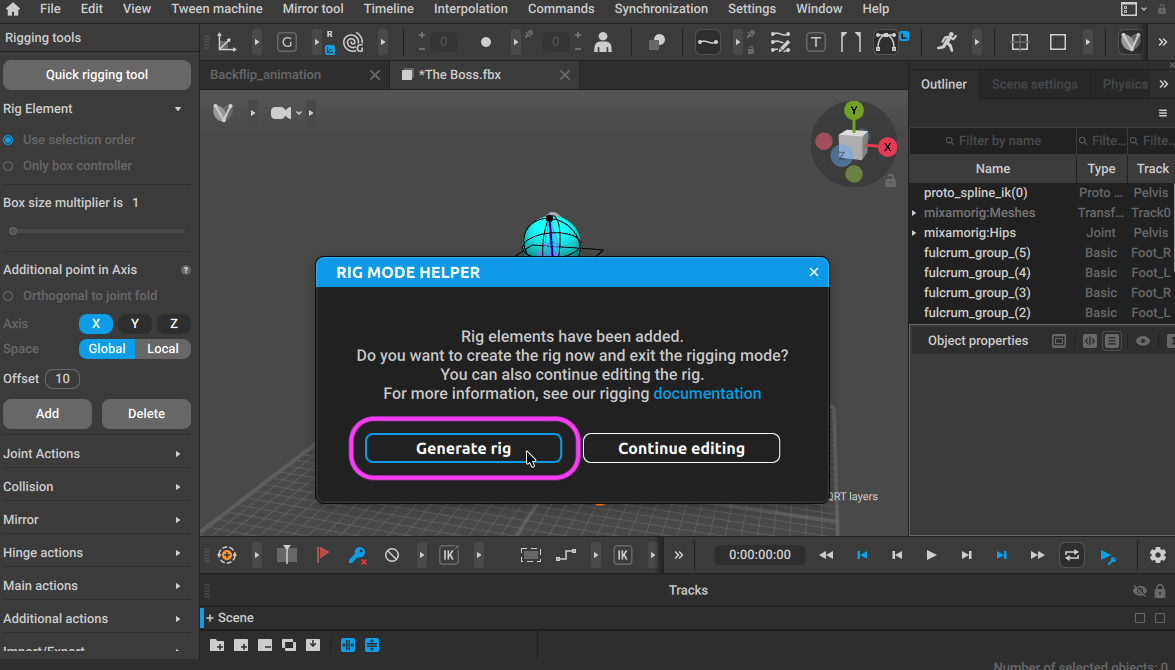
Click Generate rig.
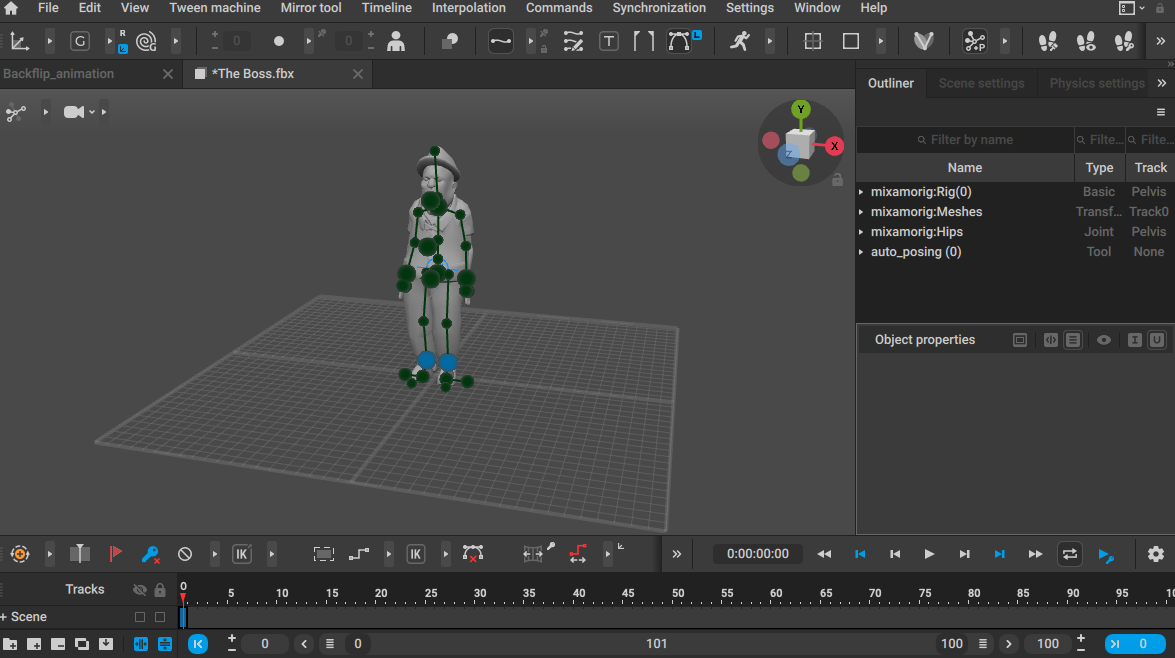
The mixamo model now has Cascadeur’s rig spec.
4.4 Retarget
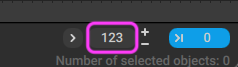
Match the mixamo scene’s frame count to the Backflip scene (123 frames).
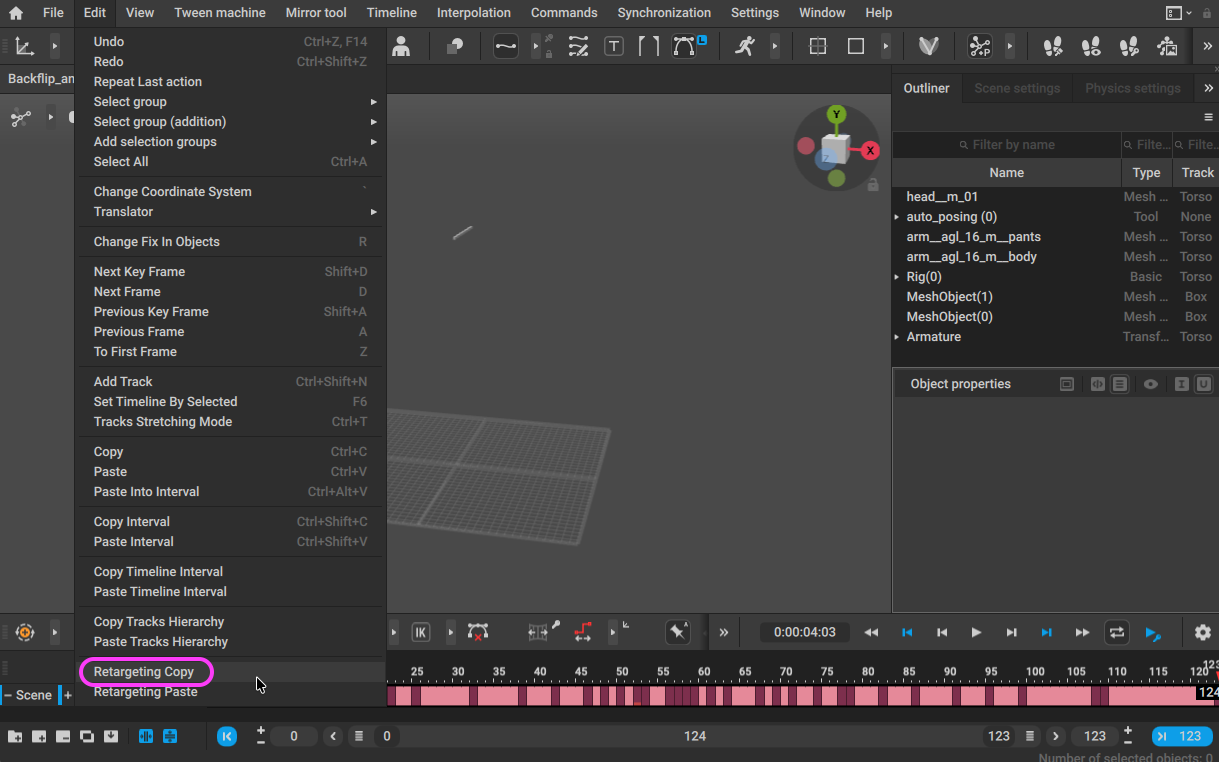
In the Backflip scene, select all frames and use Edit > Retargeting Copy.
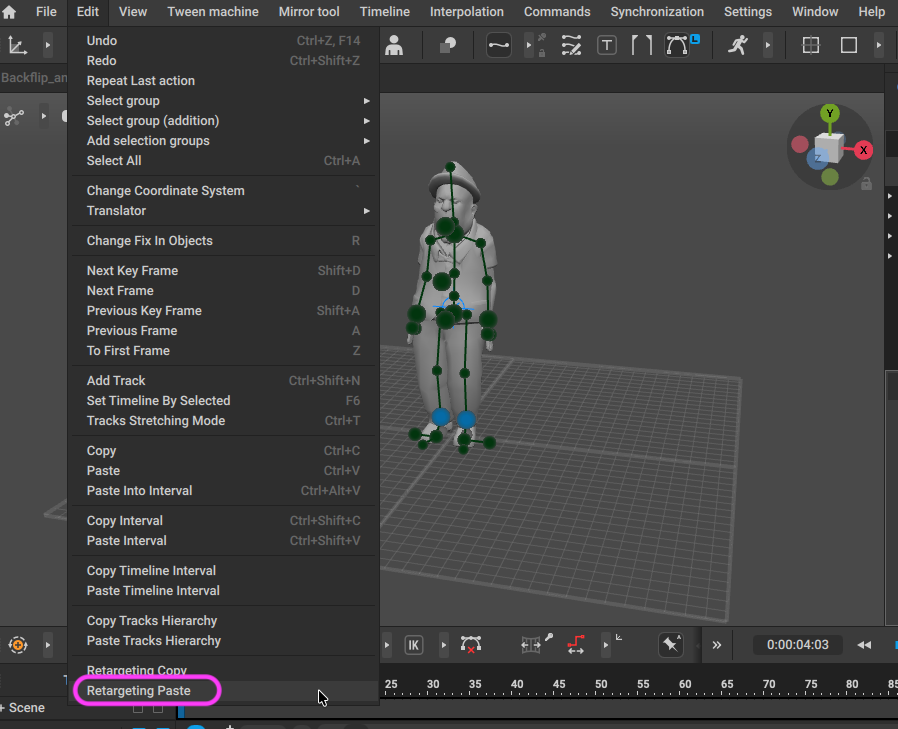
In the mixamo scene, select all frames and use Edit > Retargeting Paste.
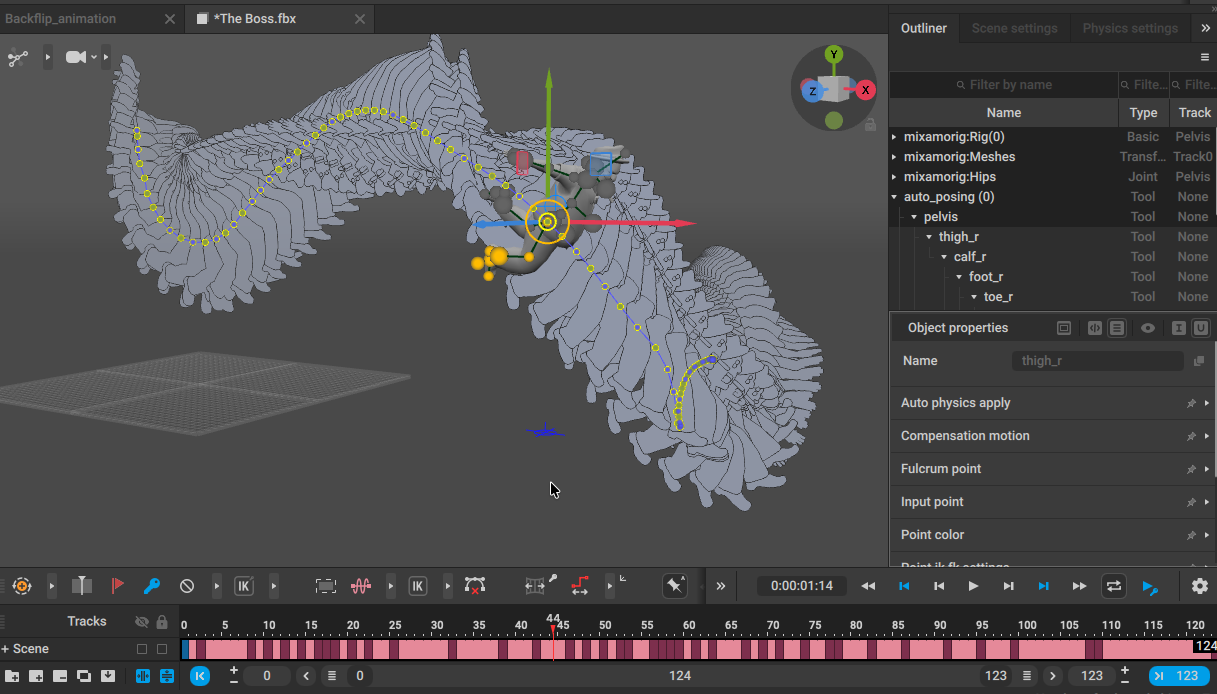
The animation is applied to the mixamo character.
Note: After retargeting, more points tend to be locked than in the source. Release the unnecessary locks manually.
4.5 Export FBX
File > Export Fbx/Dae.
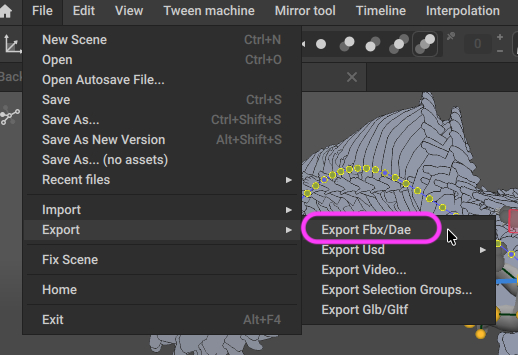
Click Export.
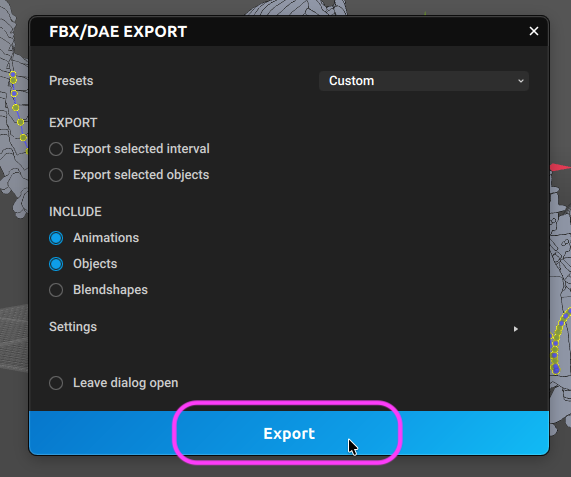
Save the mixamo scene as a .casc if you want.
5. Blender Steps
Requires Blender 4.4 or later: the workflow relies on the Slot feature in the Action Editor introduced in 4.4.
5.1 Setup
Create a new project, delete the default cube. Save as needed.
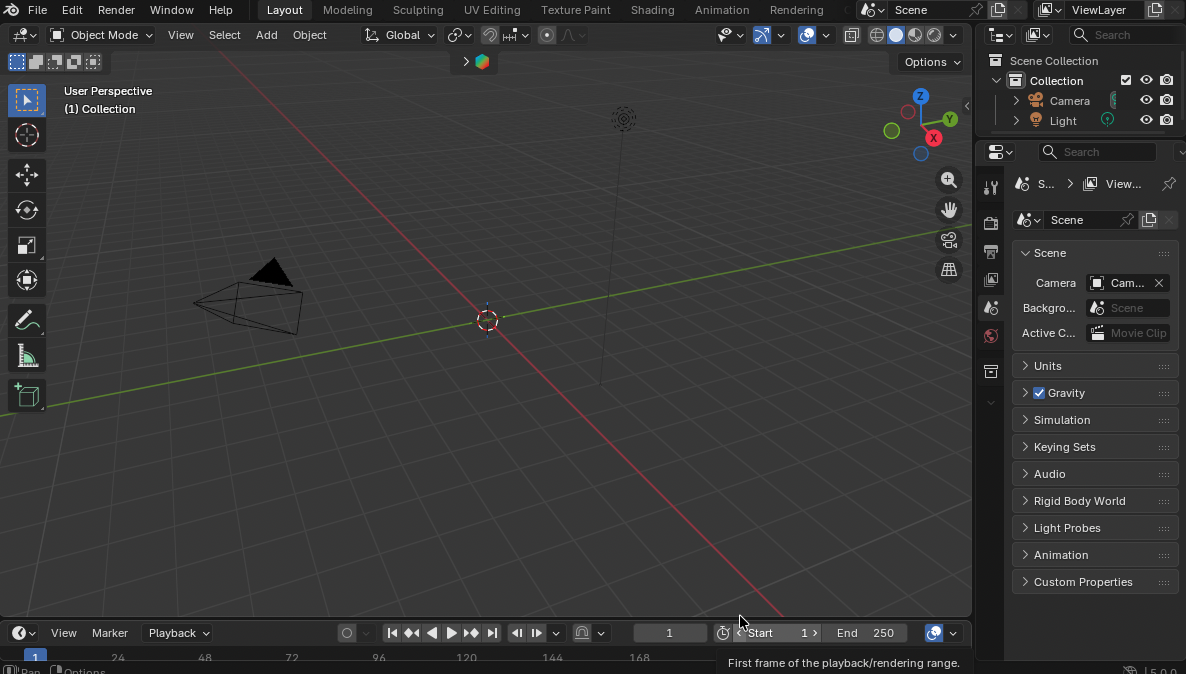
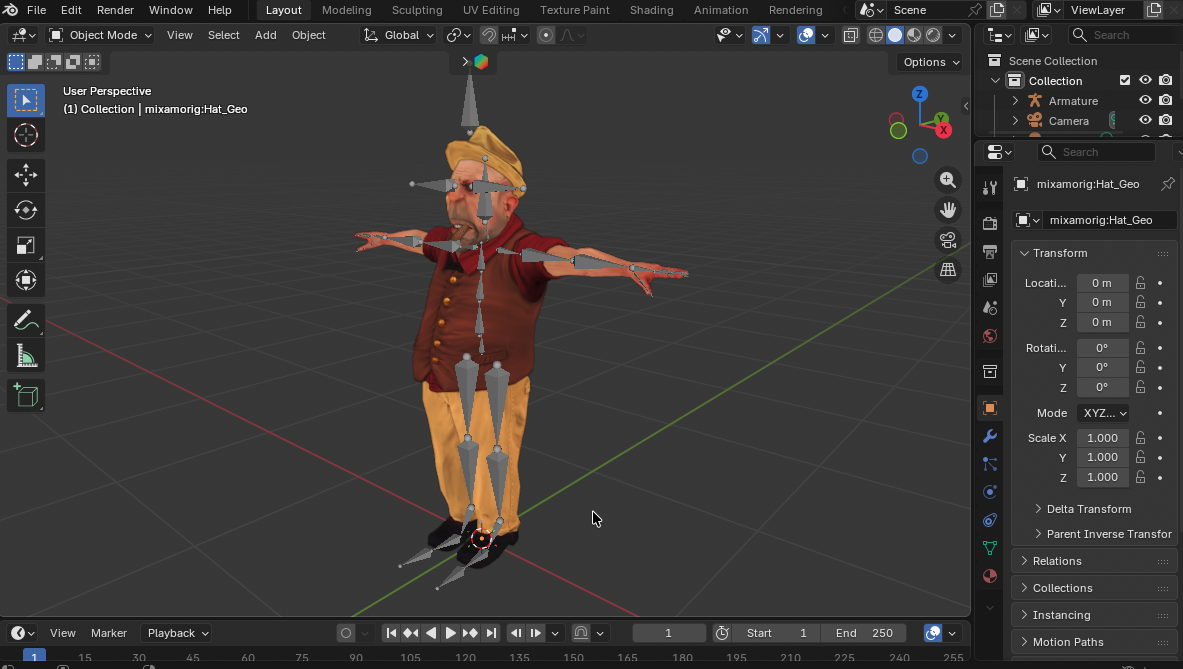
5.2 Import the mixamo character (T-pose)
File > Import and load the mixamo FBX. Switch the viewport to Material
Preview, then enable Flat and Texture display.
5.3 Import the Cascadeur-exported FBX
File > Import the Cascadeur FBX.
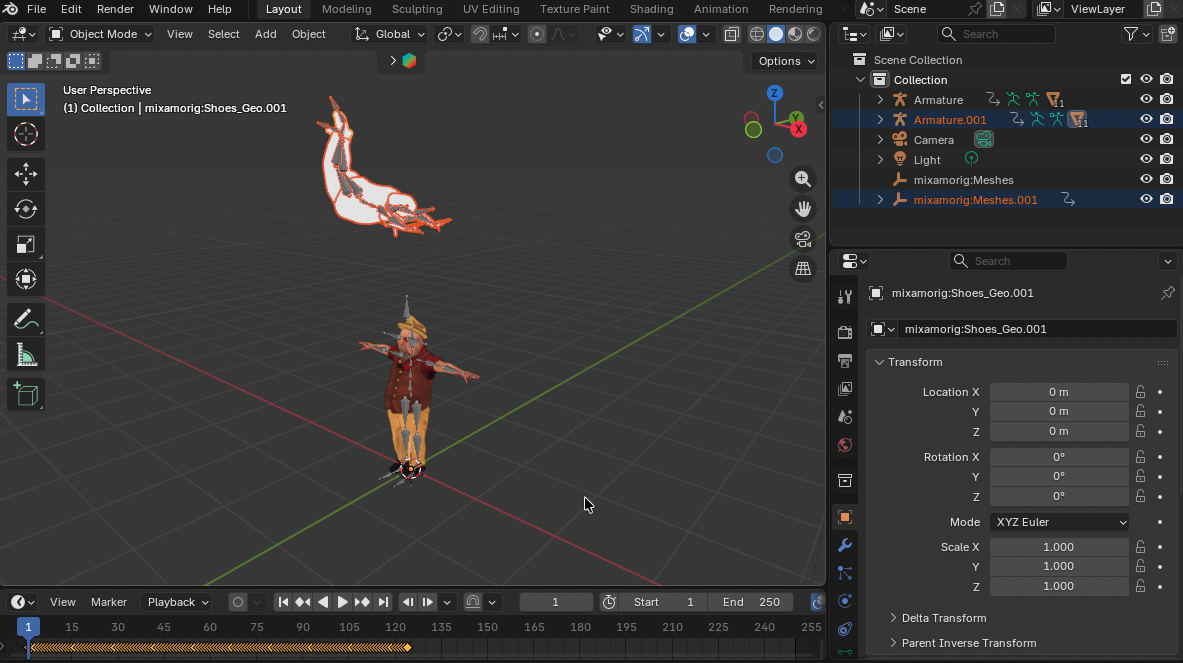
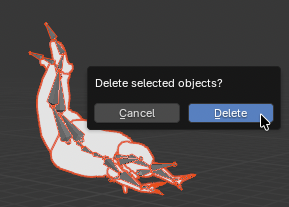
Select the imported Armature and Mesh and delete them with X. The key
detail: the Action data is NOT deleted along with them.
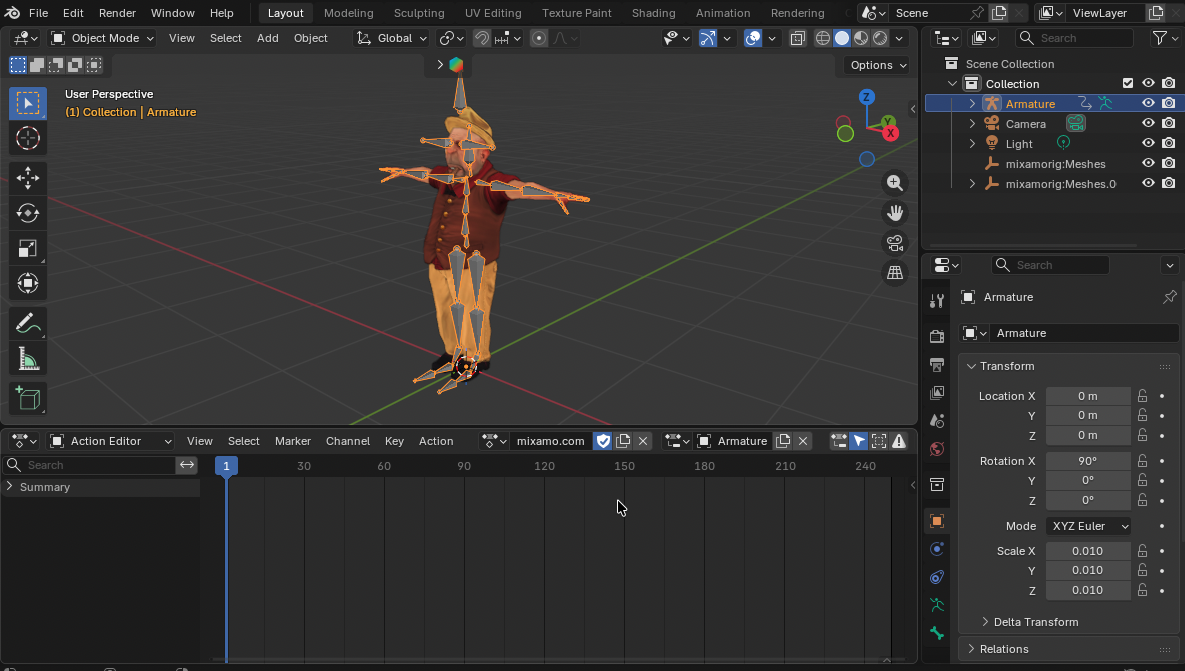
Select the T-pose’s Armature, switch the Timeline to Dope Sheet, then to Action Editor mode.
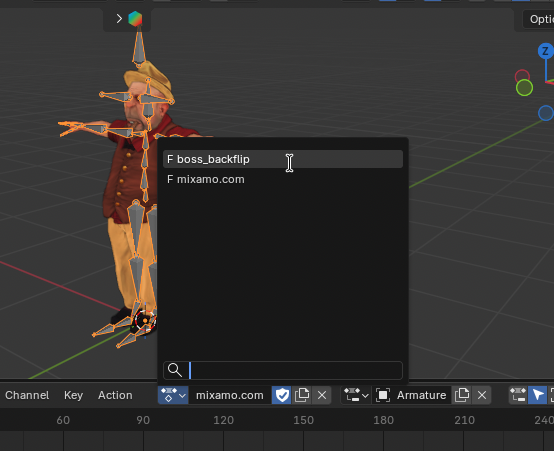
Choose F boss_backflip as the Action.
Set Slot to Armature.001.
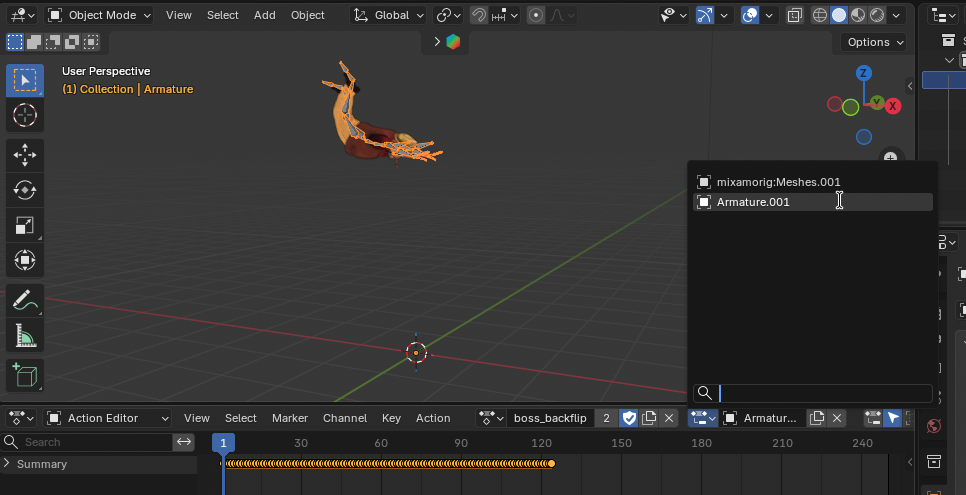
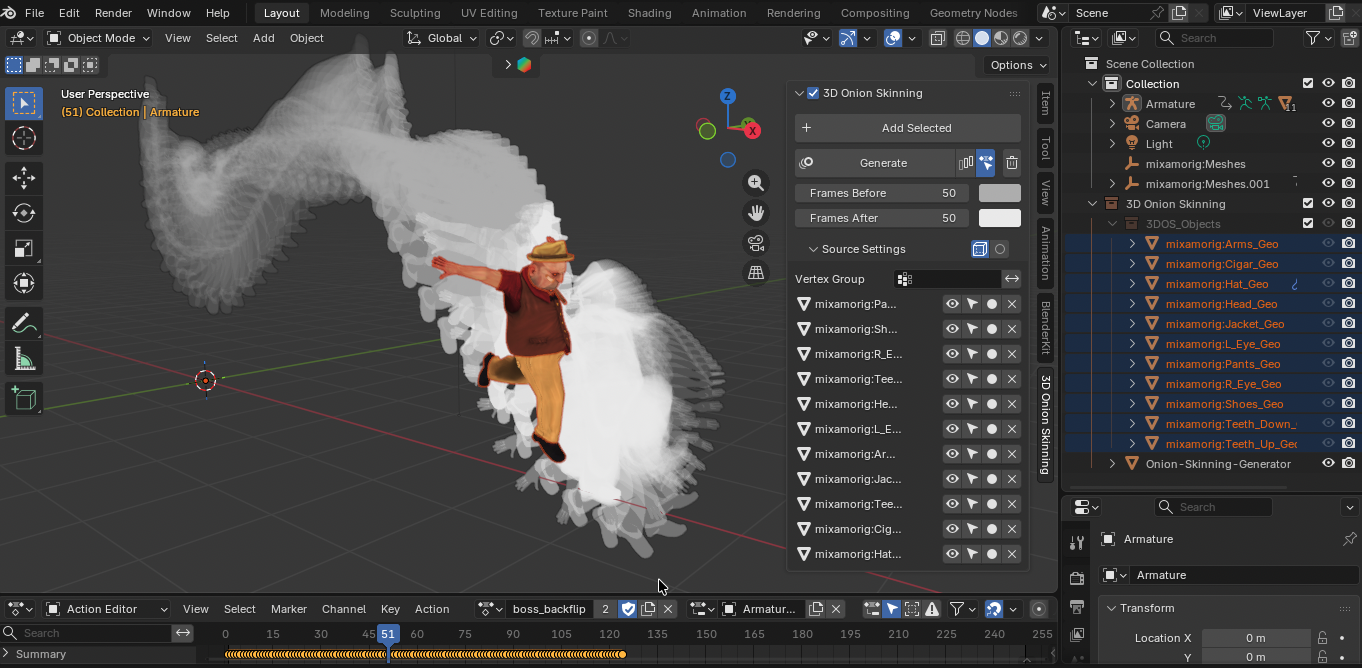
The mixamo T-pose character now plays the Cascadeur animation.
For reference, the same animation displayed via the 3D Onion Skinning Addon:
6. Additional Notes
Editing mocap data
Adjust AutoPosing Lock Statelets you turn unnecessary blue (locked) points into green (computed) points- Inbetween interpolation converts all points to blue, which may produce abrupt motion. Bake/unbake selectively if so
Reference videos
- Full toolbar walkthrough (Cascadeur 2025.1)
- Cascadeur animation to Blender (without any converter or add-on)
Related Pages
- Cascadeur Basics — UI and license fundamentals
- Cascadeur Loop Animation — building looped motion
- Cascadeur Advanced Techniques — overview of advanced applications